WooCommerce Core Web Vitals: How to Fix LCP, INP, and CLS
WooCommerce Core Web Vitals scores are a direct Google ranking signal — and most WooCommerce stores fail them. The reasons are structural: PHP server-side rendering inflates LCP, heavy plugin JavaScript degrades INP, and asynchronous cart fragments cause CLS. This guide explains each metric in the WooCommerce context and gives you specific fixes to apply.
TL;DR
Understanding your WooCommerce Core Web Vitals scores
Start with Google PageSpeed Insights using your real URLs — homepage, a product page, a category page, and checkout. The “Field Data” section shows real-world measurements from Chrome users. The “Lab Data” section shows simulated Lighthouse results. Both matter, but field data is what Google uses for ranking.
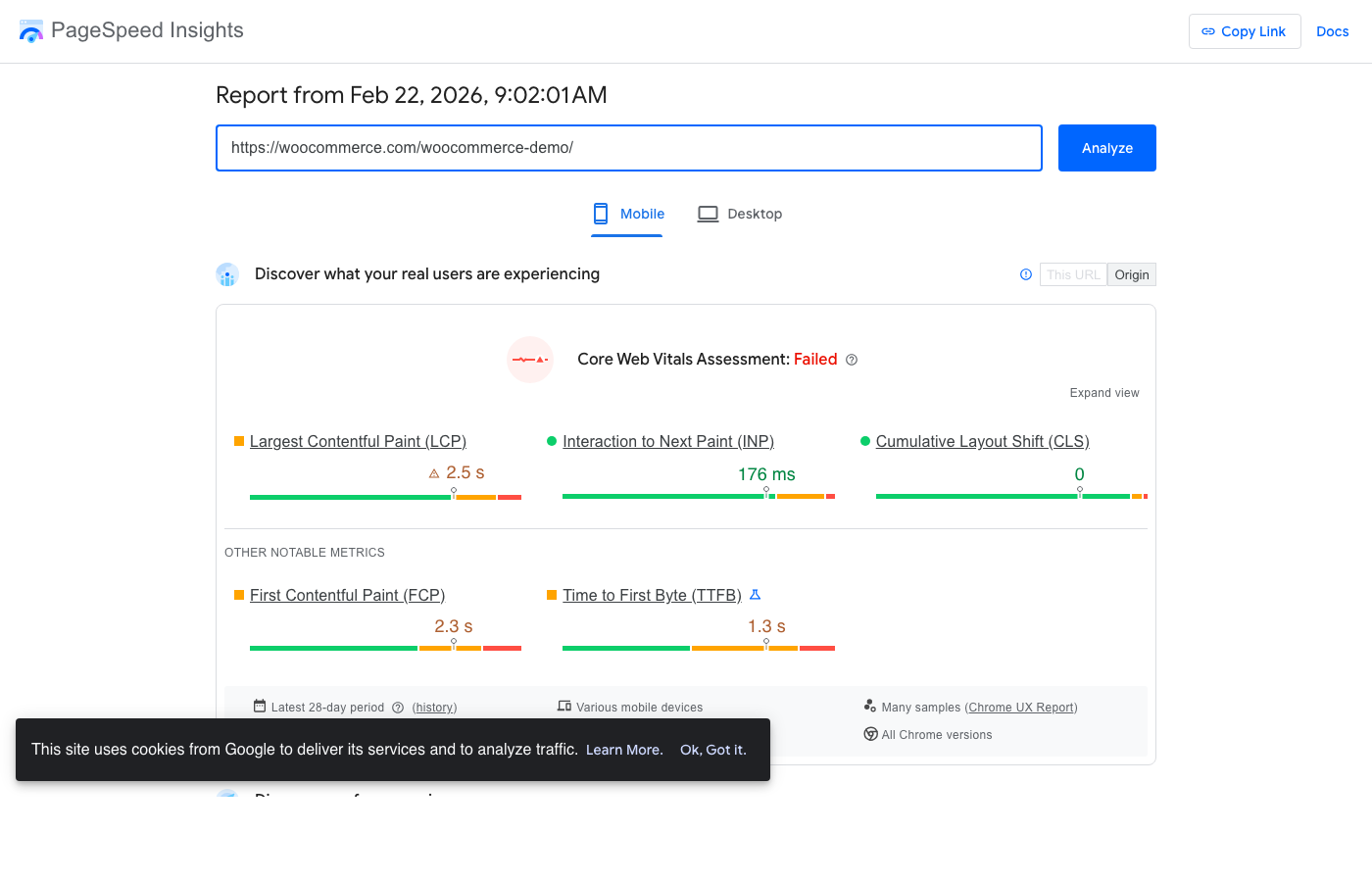
<2.5s
LCP target for a "Good" score
<200ms
INP target for a "Good" score
<0.1
CLS target for a "Good" score
Test mobile and desktop separately
Fixing LCP on WooCommerce
LCP — Largest Contentful Paint — measures how long it takes for the largest visible element to appear on screen. On WooCommerce, this is almost always a product image, hero banner, or category page heading. The LCP start time is limited by your server response time: if PHP takes 600ms to send the first byte of HTML, LCP cannot start until at least 600ms has elapsed.
Fix 1: Reduce Time to First Byte (TTFB)
TTFB is the time between a browser requesting a page and receiving the first byte of the response. On a cached WooCommerce page, TTFB should be under 200ms. Without caching, it's typically 400–800ms. If you haven't installed a caching plugin yet, do that before anything else — it's the highest impact single change available. See our caching plugin comparison for the right choice for your setup.
Fix 2: Preload your LCP image
The browser doesn't know which image will be the LCP element until it has parsed your HTML and CSS. By the time it discovers the hero image, it may be well into page load. Preloading tells the browser to fetch the image immediately, before it discovers it naturally.
Add this to your theme's <head> for product pages:
<link rel="preload" as="image" href="/path/to/hero-image.jpg" />WP Rocket and FlyingPress can automate LCP preloading. Enable it in the media settings of your caching plugin if available.
Fix 3: Do not lazy load your LCP image
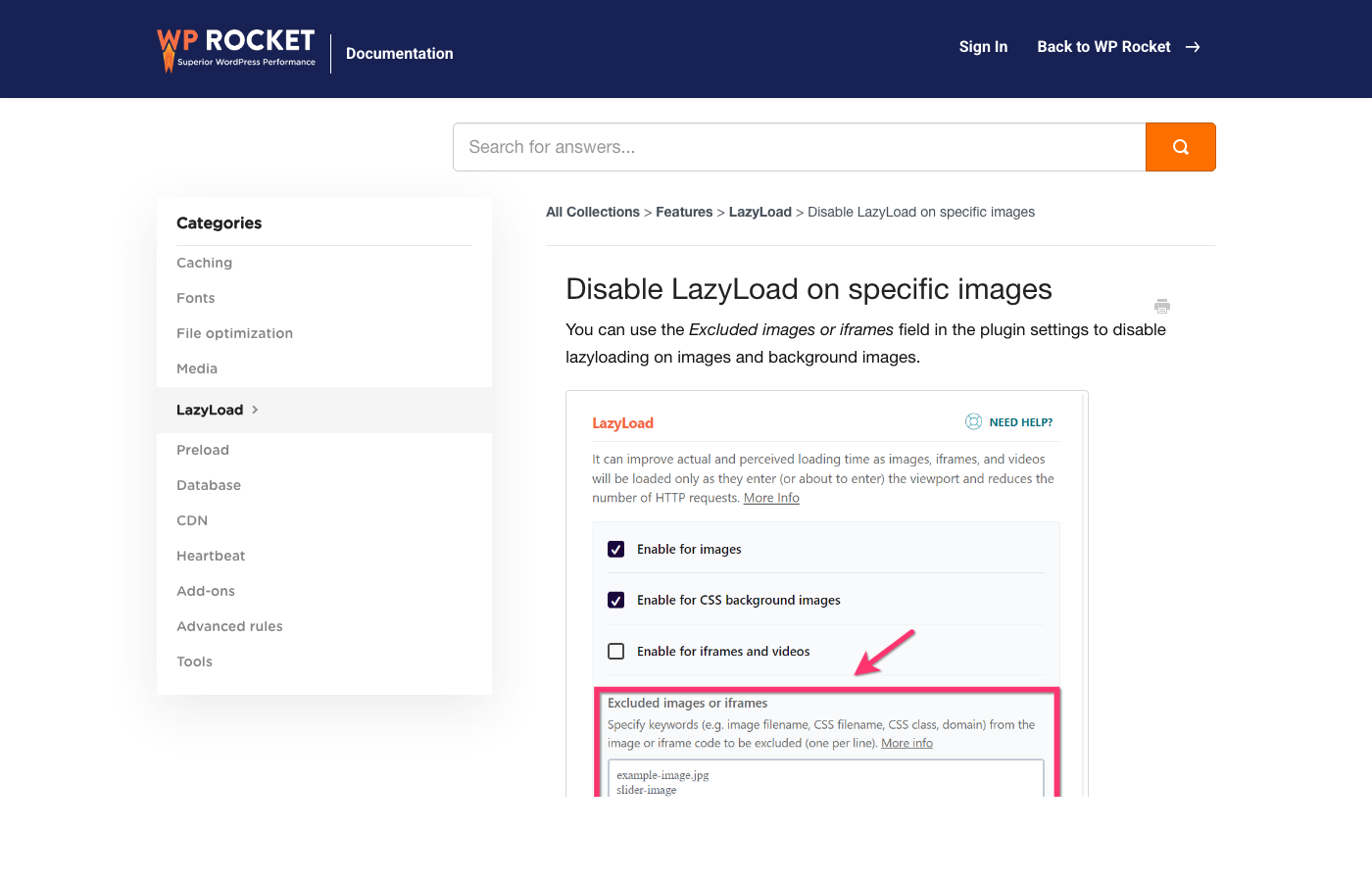
Lazy loading defers image loading until the image is near the viewport. This is correct behaviour for below-the-fold images. For your LCP image, it's the wrong setting — it actively delays your most important render. Make sure your hero/main product image has loading="eager"(or no loading attribute) and is not affected by your lazy loading plugin.
Fix 4: Serve images in next-gen formats
WebP images are 30–50% smaller than JPEG at equivalent quality. AVIF is even smaller. Serving WebP/AVIF instead of JPEG reduces the data the browser must download before LCP can complete. Use Imagify, ShortPixel, or the built-in image tools in LiteSpeed Cache or NitroPack.
“LCP dropped from 4.2s to 1.8s just from caching plus WebP conversion.”
Fixing INP on WooCommerce
INP — Interaction to Next Paint — replaced FID as a Core Web Vitals metric in March 2024. It measures how responsive a page is to user interactions: clicks, taps, and key presses. A high INP score means your page feels sluggish when visitors try to interact with it — clicking ‘Add to Cart’, changing product variations, opening menus.
The primary cause of poor INP on WooCommerce is JavaScript. A typical WooCommerce store loads the WooCommerce core scripts, theme scripts, payment gateway JavaScript (Stripe, PayPal, etc.), live chat scripts, analytics, loyalty plugin scripts, and more. All of this JavaScript must be parsed and executed before the page becomes fully interactive.
Fix 1: Defer or async all non-critical JavaScript
JavaScript that is “render-blocking” stops the browser from displaying the page until the script has downloaded and executed. Deferring JavaScript means it executes after the HTML has been parsed — the page displays first, then scripts run.
Most caching plugins include a “defer JavaScript” option. Enable it, but exclude WooCommerce-critical scripts (wc-cart, wc-checkout, stripe JS). Perfmatters' Script Manager gives per-script control if you need to be precise.
Fix 2: Delay third-party scripts until user interaction
Live chat widgets, marketing pixels, and analytics scripts often load immediately on page load even though they aren't needed until the user does something. Delaying these scripts until first user interaction (mouse move, scroll, click) keeps them out of the critical path.
Fix 3: Remove plugins you don't need
Every plugin that loads JavaScript on your store pages contributes to INP. Review your active plugins and remove anything that isn't actively adding value. Use Query Monitor to see which plugins are adding JS to which pages.
Payment gateway scripts and INP
Fixing CLS on WooCommerce
CLS — Cumulative Layout Shift — measures visual instability. When elements on the page move after the initial render, users may accidentally click the wrong thing or lose their place. WooCommerce has a few specific CLS culprits.
Fix 1: Set explicit dimensions on all images
When a browser encounters an image without explicit width and height attributes, it doesn't know how much space to reserve. The content below shifts down when the image loads. For WooCommerce product images, ensure your theme or WooCommerce configuration sets width/height attributes on all product image tags.
Fix 2: Reserve space for WooCommerce cart fragments
WooCommerce's cart widget (mini-cart, cart item count) loads asynchronously via AJAX. If your theme doesn't reserve a fixed height for the cart widget, it shifts the layout when the cart data loads. Set a minimum height on your cart widget container in CSS to match its loaded state.
Fix 3: Control web font loading
If your theme uses a web font that takes time to load, the browser renders text in a fallback font first, then swaps to the web font when it arrives. This causes a layout shift if the two fonts have different metrics. Usefont-display: swap and preload your primary font to minimise the shift window.
“Setting image dimensions and fixing cart widget height dropped our CLS to zero.”
Tools for ongoing Core Web Vitals monitoring
- Google Search Console → Core Web Vitals report — real-world URL-level data
- PageSpeed Insights — on-demand test for any URL with detailed diagnostics
- GTmetrix — waterfall view to identify specific slow requests
- FlyingPress dashboard — built-in CWV monitor if you use FlyingPress
- Chrome DevTools → Performance panel — detailed JS execution timing
- WebPageTest — advanced testing with multiple locations and connection speeds
- Screaming Frog — bulk page audit to identify pages with poor scores at scale
The structural ceiling for WooCommerce Core Web Vitals
With the fixes above, a typical WooCommerce store can achieve:
70–85
Achievable Lighthouse score for product pages with good caching
40–65
Typical score for checkout and cart pages (cannot be cached)
90+
Achievable with headless frontend on all pages including checkout
Checkout and cart pages cannot be fully cached — they're dynamic by nature. This means their LCP is always limited by PHP processing time, and their INP is affected by the full weight of WooCommerce's JavaScript. This ceiling is architectural, not a configuration problem.
A headless WooCommerce frontend solves this by rebuilding the storefront in React with Next.js. Product and category pages are statically generated and served from edge CDN. The cart and checkout are React components that make direct API calls — no PHP rendering, no WooCommerce JavaScript bloat. Read our guide to WooCommerce speed optimisation for a full explanation of the architectural case for headless.
Keep reading
Related guides you might find useful
Why Is WooCommerce So Slow? The Architecture Problem (and the Fix)
Caching and hosting only go so far. Here's why WooCommerce is inherently slow, what the usual fixes miss, and how a headless frontend solves the root cause.
Read guidePerformanceHow to Audit Your WooCommerce Store Speed (Free Tool + Plugin)
Step-by-step guide to auditing your WooCommerce store speed — understand your PageSpeed score, Core Web Vitals, and what to fix. Free online tool and WordPress plugin included.
Read guidePerformanceWooCommerce Speed Test Plugin: Audit Your Store from WordPress Admin
How to install and use the free WooCommerce Speed Audit plugin — one-click PageSpeed audits for your Shop, Cart, and Checkout pages plus headless compatibility scanning.
Read guideYour plugins are the bottleneck.
WPBundle replaces 13 WooCommerce plugins with one optimized suite. Faster load times, fewer conflicts, $149 once.
Join the Waitlist